r2modman
The desktop application that manages game profiles, downloads packages, edits configs, checks updates, and starts the modded game.
Inspect the open-source projectDownload r2modman for Windows, Linux, or Steam Deck, then manage game-specific Profiles, Loader and BepInEx dependencies, configuration files, and modded launches from one repeatable workflow. This guide is for players who want to install mods without losing track of what changed.
Choose your platform. Each button opens the current release file directly.
r2modman-Setup-3.2.19.exeDownload r2modman-3.2.19.AppImageDownload r2modman.flatpakDownload Research-backed guidance for the tools modders already use
Snapshot: v3.2.19 · August 21, 2026r2modman publishes builds for Windows, Linux desktop, and Steam Deck. These links take you straight to the current release asset.
Understanding the layers makes installation and troubleshooting much easier.
The desktop application that manages game profiles, downloads packages, edits configs, checks updates, and starts the modded game.
Inspect the open-source projectThe package index and distribution ecosystem that provides mod metadata, versions, README files, and dependency relationships.
Open the package pageYour game and its loader, such as BepInEx or another supported loader, are what actually load plugins at runtime.
Read the setup Wikir2modman is most useful when you want repeatable game profiles—not when you need a universal tool for every game or platform.
You searched for r2modman download or how to install r2modman and need more than a file link. The site walks you through the game path, Profile, loader, dependencies, Start modded, and the first success check.
You use Thunderstore for Lethal Company, PEAK, Risk of Rain 2, ULTRAKILL, Valheim, or another supported community and need separate vanilla, multiplayer, and experimental Profiles.
You need an r2modman Linux or Steam Deck install with AppImage, Flatpak, Proton, Steam-library permissions, Game Mode/Desktop Mode, or .forceproton guidance.
You are testing a local mod, comparing Loader versions, sharing a Profile, or diagnosing BepInEx, preloader DLL, Steam path, or “mods not working” errors with evidence.
Each checkpoint answers two questions: what should you do next, and what evidence tells you it worked?
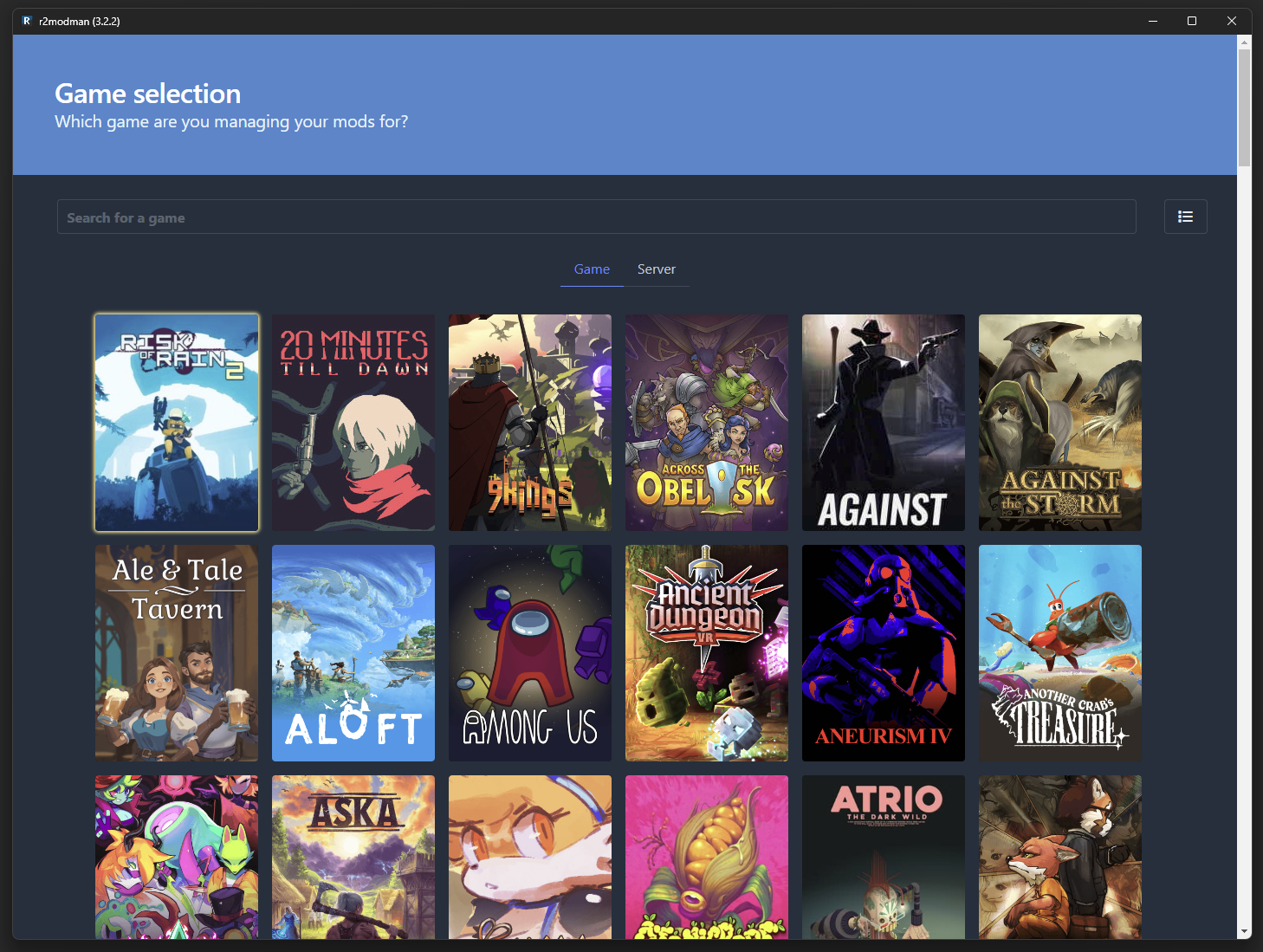
Open Game Selection and select the game you actually own. A similarly named entry can use a different loader, folder layout, or package index. Before installing a mod, open Steam → Manage → Browse local files and keep that directory visible for comparison.
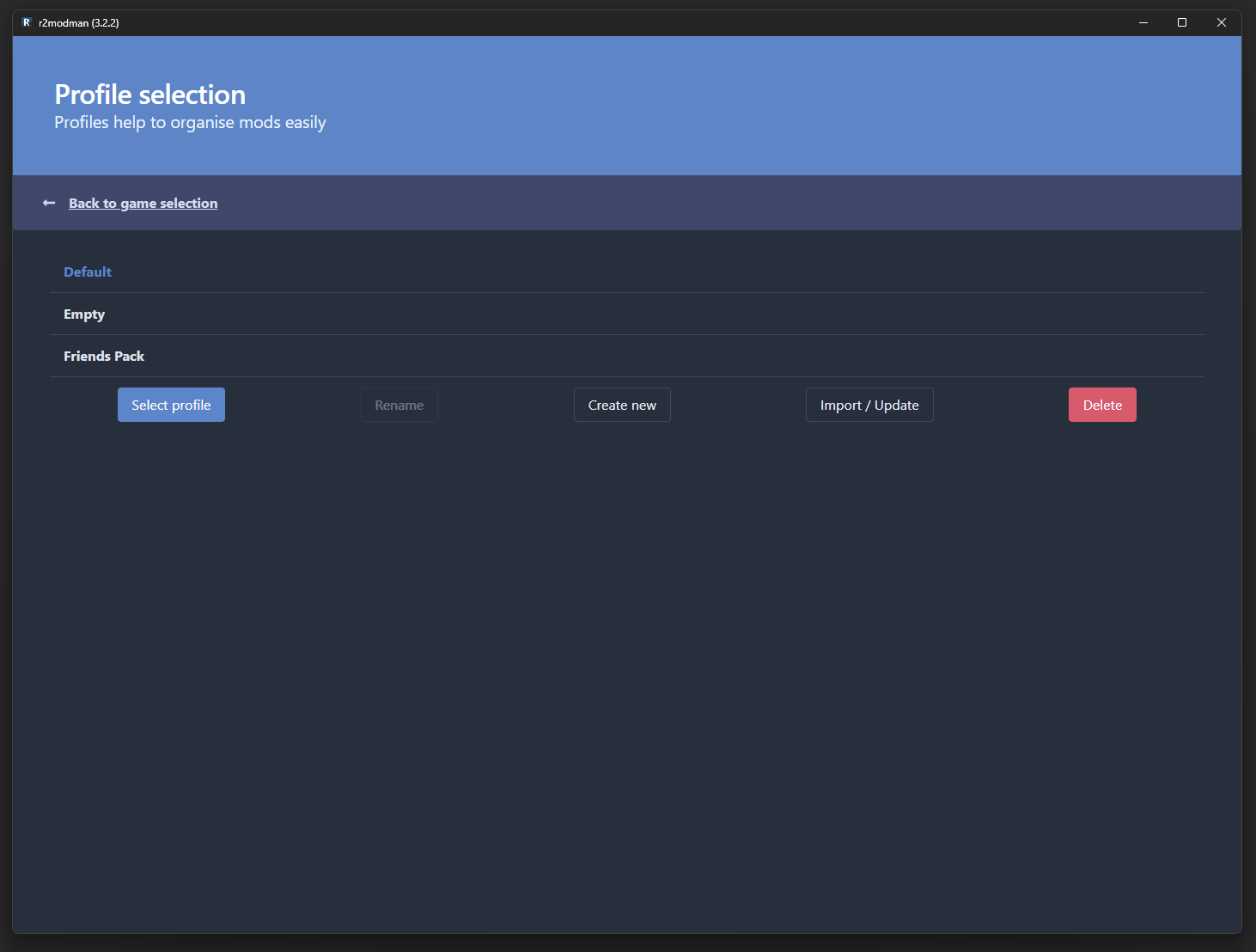
Success signal: the path in Settings → Locations is the same folder Steam opens.Create a profile named Vanilla, Loader test, or another name that describes its purpose. Keep this profile small. It becomes your control group: if a large modpack fails later, you can compare the loader-only launch instead of guessing.
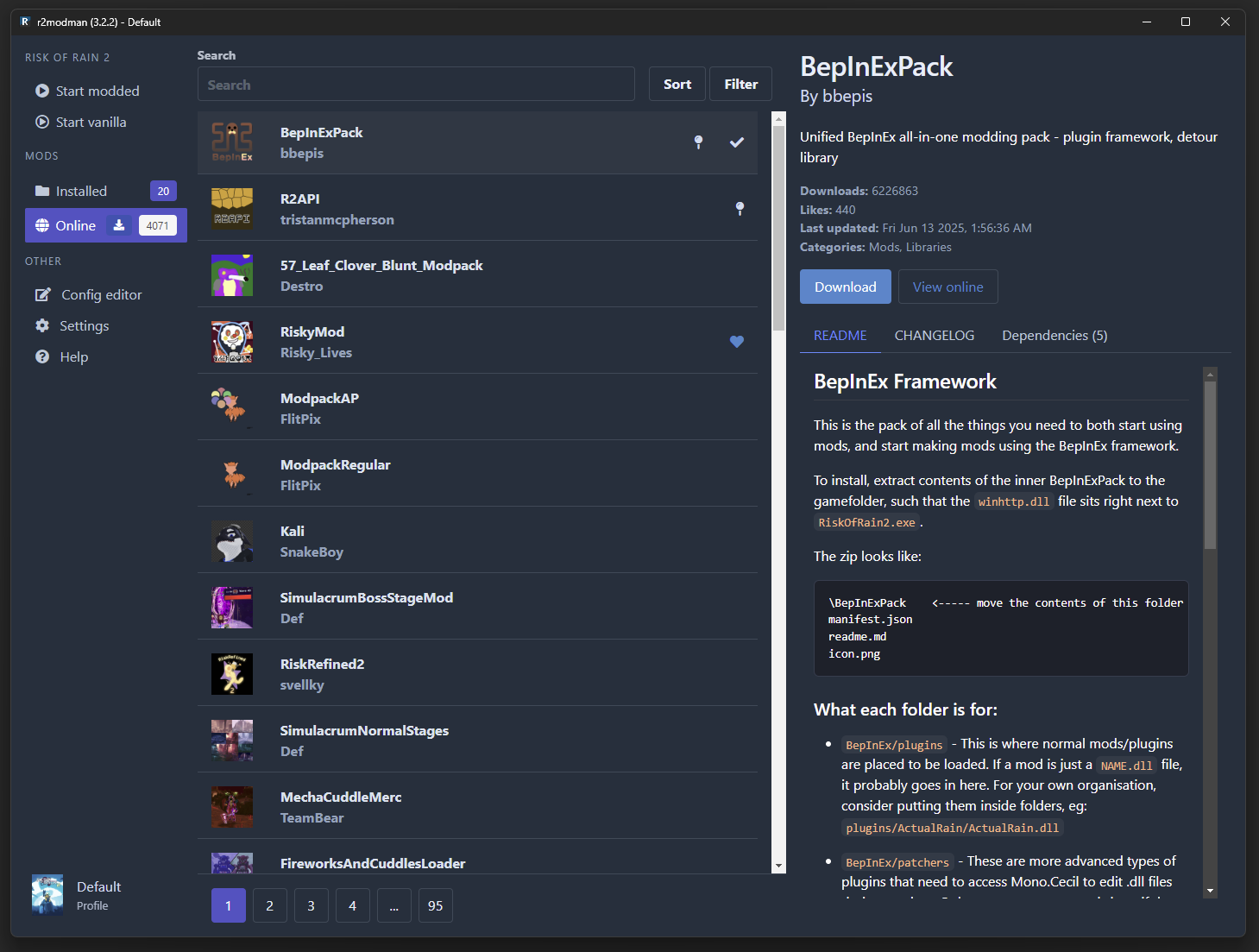
Success signal: a new profile appears separately from your daily or multiplayer setup.Use the Online tab to install the game’s required loader or core package first. Then install shared libraries and dependencies before the feature mod. Read the package README and inspect Installed after each batch; a green download is not proof that the loader initialized.
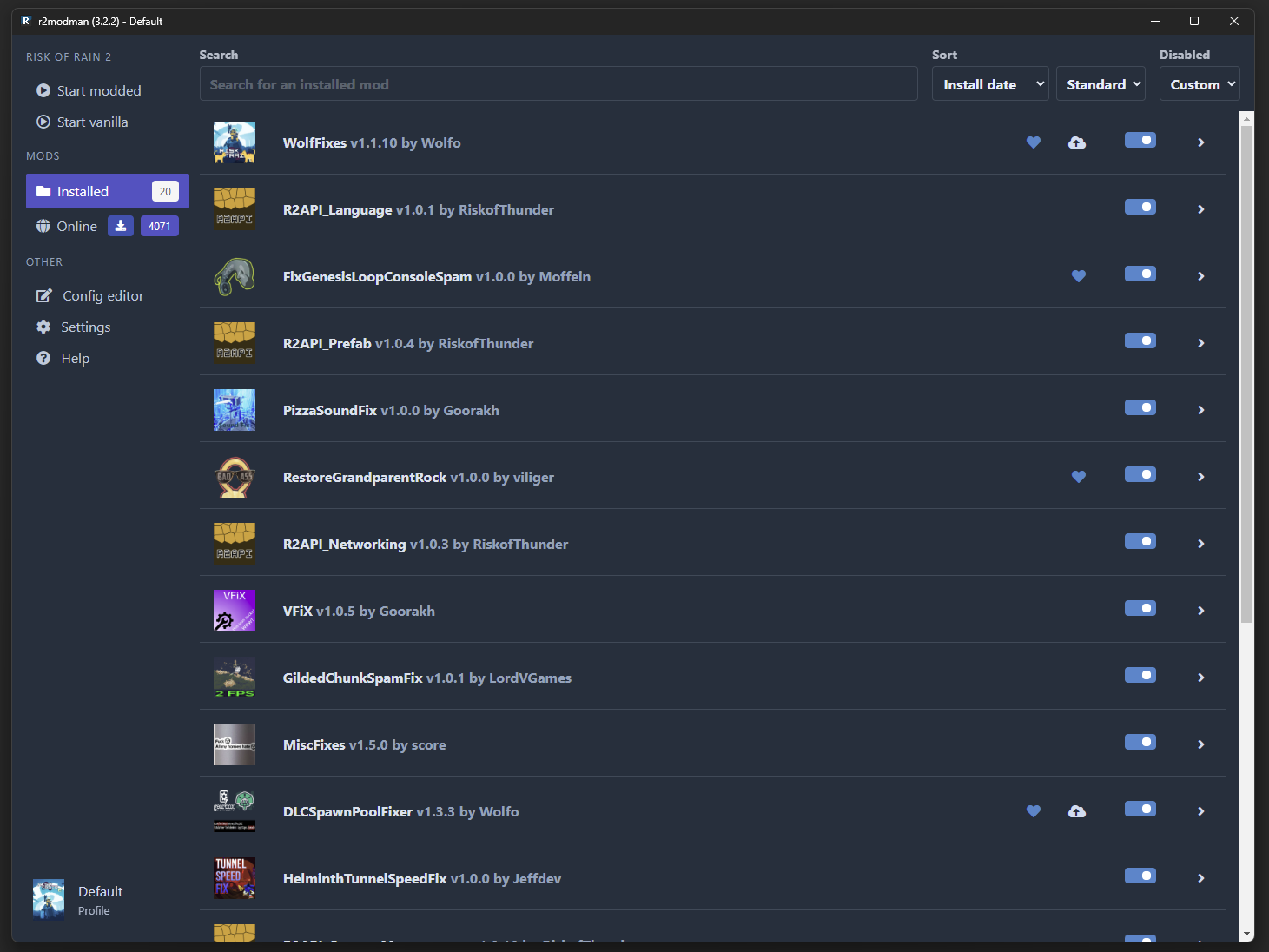
Success signal: Installed shows the expected loader and dependency chain with versions.Use Start modded for the profile you just prepared. Use the normal Steam launch when you need the vanilla game. On the first run, watch for the loader console or log and test the exact in-game behavior described by the mod author.
Success signal: a loader log, plugin message, or documented in-game feature confirms the mod is active.Once the baseline works, add a few related packages at a time. Export the profile before a large change. If the next launch fails, disable only the newest batch and test again; this is faster and safer than deleting every mod and starting from memory.
Success signal: you can name the last change that introduced a failure and return to the previous profile state.Record the game version, r2modman release, loader version, profile name, important config changes, and any local files. Export a profile code or .r2z file for recovery, but keep saves and manually installed DLLs in a separate backup because they may not be included.
Success signal: another machine—or your future self—can rebuild the profile without guessing.Good mod management is controlled change: know what moved, what should happen next, and how to return to the last working state.
Name profiles by purpose—Vanilla, Stable, Lab, or a server—and keep a short note with the game, loader, and modpack versions. Export a code or `.r2z` before sharing or updating.
Read the profile guideUse Online to read package README content and required dependencies, then check Installed for the actual versions. If a dependency is missing, isolate it before adding another feature mod.
Follow the install orderSeparate manager, game, loader, dependency, and mod updates. Test in a cloned Lab profile, launch after each small batch, and keep Stable until the new setup survives repeated runs.
Learn the safe update pathConfig Editor helps with supported files; the cache speeds up downloads; local DLLs need their own source and version notes. None of these replaces a backup of saves or custom files.
Understand the data boundaryr2modman is straightforward when the layers are clear. These are the decision points that prevent the most common dead ends.
Windows: Setup executable. Linux: AppImage or your distribution package. Steam Deck: Flatpak from Desktop Mode. Need an older version or a checksum? Use the complete download center.
Compare every platformNo. It depends on a game community, its package index, and a compatible loader. Search the game center first and verify the current community entry instead of copying files from another game.
Browse game centersConfirm Start modded, the game path, loader startup, dependencies, and the first log error. Then reproduce with a loader-only profile and one target mod before blaming the whole pack.
Open the diagnosis playbookExport a profile code and .r2z, copy important configs and saves, and test updates in a cloned Lab profile. The download cache can speed up reinstalls but cannot recreate every local file.
Read the update procedureProfile exports can describe packages and versions, but local DLLs, custom configs, saves, and server rules may need separate, license-compliant documentation.
Learn profile sharing limitsCompare the exact asset’s SHA-512 with the published release metadata. A matching checksum confirms content integrity for that file; it does not certify every third-party mod you install later.
Use the local verifierThese project screenshots show the path from game selection to profile maintenance. The interface can change between releases, but the workflow stays familiar.
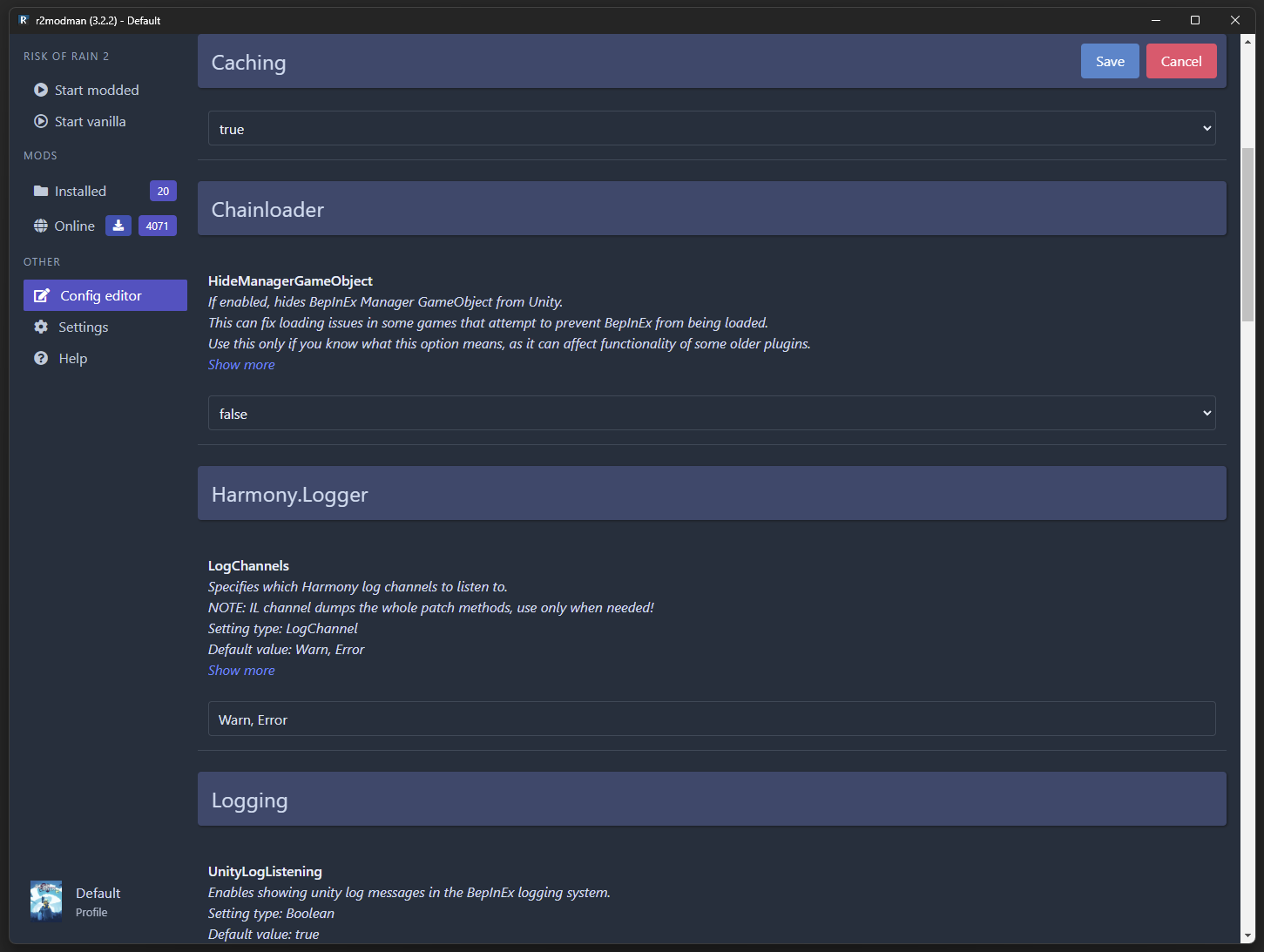
Screenshots: r2modmanPlus project documentation · view the source project
Support is dynamic and game-specific. These are entry points for research, not a promise that every version or mod is compatible.
Use this short sequence to make your first diagnosis easy if something goes wrong.
These answers cover the questions that determine whether a problem belongs to the manager, the game path, the loader, a dependency, or a third-party mod.
r2modman is a desktop mod manager. It organizes game-specific profiles, downloads packages and dependencies, edits supported configuration files, checks updates, and starts a game with that profile. It is not the game, the loader, or the Thunderstore package ecosystem itself.
No. Thunderstore is the package index and distribution ecosystem: it provides package pages, versions, README content, and dependency metadata. r2modman is the application that consumes that information and maintains the local profile used to launch the game.
Use the Windows Setup executable on Windows. On Linux, choose AppImage for portability or deb, rpm, pacman, or tar.gz to match your distribution. On Steam Deck, start with the Flatpak in Desktop Mode, then verify the game library permissions before moving to Game Mode. The download center lists every current asset and historical release.
The current v3.2.19 release snapshot contains Windows and Linux assets, but no macOS installer was found in the published files. Do not plan a Mac installation from a Windows or Linux package; check the current release assets and project documentation again if macOS support changes.
For most supported PC games, yes. r2modman uses the Steam installation and game directory to locate files and hand off a modded launch. The exact requirement is game-specific, and Proton or Flatpak adds another path and permission layer.
The normal Steam launch starts the unmodded game path. Start modded applies the selected profile and its loader handoff. If a package is installed but the normal launch is used, the game can open successfully while no mod is loaded—creating a misleading diagnosis.
Install the community-required loader or core package first, then shared libraries and dependencies, then the feature mod. This order gives you a clean checkpoint after each layer. If the loader-only profile cannot start, adding more mods will only hide the original problem.
Check four layers in order: Start modded was used, Settings → Locations points to the Steam game folder, the loader initialized, and required dependencies are present. Then isolate the mod in a clean profile and read the first loader exception rather than the final generic exit message.
Yes. Keep a Vanilla or Loader-only profile as a control group and a separate Stable profile for normal modded play. Use Start modded for the profile and the regular Steam launch when you need the unmodded path. Avoid mixing profile diagnosis with save or server troubleshooting.
Yes. Export a profile code or .r2z file and document the game version, loader version, intended platform, and any manual steps. Local imports, loose DLLs, saves, and custom files may not be included, so share those separately only when the license allows it.
No. Cache data helps reuse downloaded packages across profiles. It does not guarantee recovery of saves, custom configuration, local mods, or a known-good combination of versions. Export profiles and copy important files before clearing the cache or performing a large update.
Separate the changes. Export Stable, clone it to Lab, update the manager first, then test the loader, dependencies, and feature mods in small batches. If something breaks, roll back the smallest recent change. Keep the old profile until the updated one survives repeated launches.
Confirm the exact platform file, version, size, and checksum. On Linux, run the AppImage from a terminal so you can distinguish execute permission, missing libraries, and Electron sandbox errors. On Windows, check whether security software quarantined a file. Do not delete profiles before you know the application install is the cause.
The manager is MIT-licensed, but every third-party mod is separate code with its own author, permissions, license, and compatibility risk. Verify release metadata when needed, review package documentation, avoid unknown binaries, and follow each game’s anti-cheat, server, and terms-of-use rules.
No. Support depends on a current game community, loader, package metadata, game version, platform, and sometimes server configuration. A page or search result mentioning a game is not a compatibility guarantee; verify the game-specific center and package README before installing.
Include your operating system, r2modman version, game version, profile name, loader version, recent change, first meaningful log error, and the smallest profile that reproduces the issue. Remove usernames, tokens, and private paths before sharing logs.